

- Deploy with Git — Cube Cloud builds and deploys your project from a Git repository. Use this mode when you want commits to the production branch (or merges performed from the Cube Cloud UI) to automatically trigger a production build.
- Deploy with CLI — you push your project to Cube Cloud from your local
machine or CI/CD pipeline by running the
cubejs-cli deploycommand. The production deployment is not updated by GitHub pushes or UI merges; it changes when somebody explicitly runscubejs-cli deploy.
Deploy with Git
Continuous deployment works by connecting a Git repository to a Cube Cloud deployment and keeping the two in sync. First, go to the Build & Deploy tab on the Settings screen and select Deploy with Git under Deploy with. From the same screen you can pick the production branch, connect a Git repository, and copy the commands that set up Cube Cloud as a Git remote: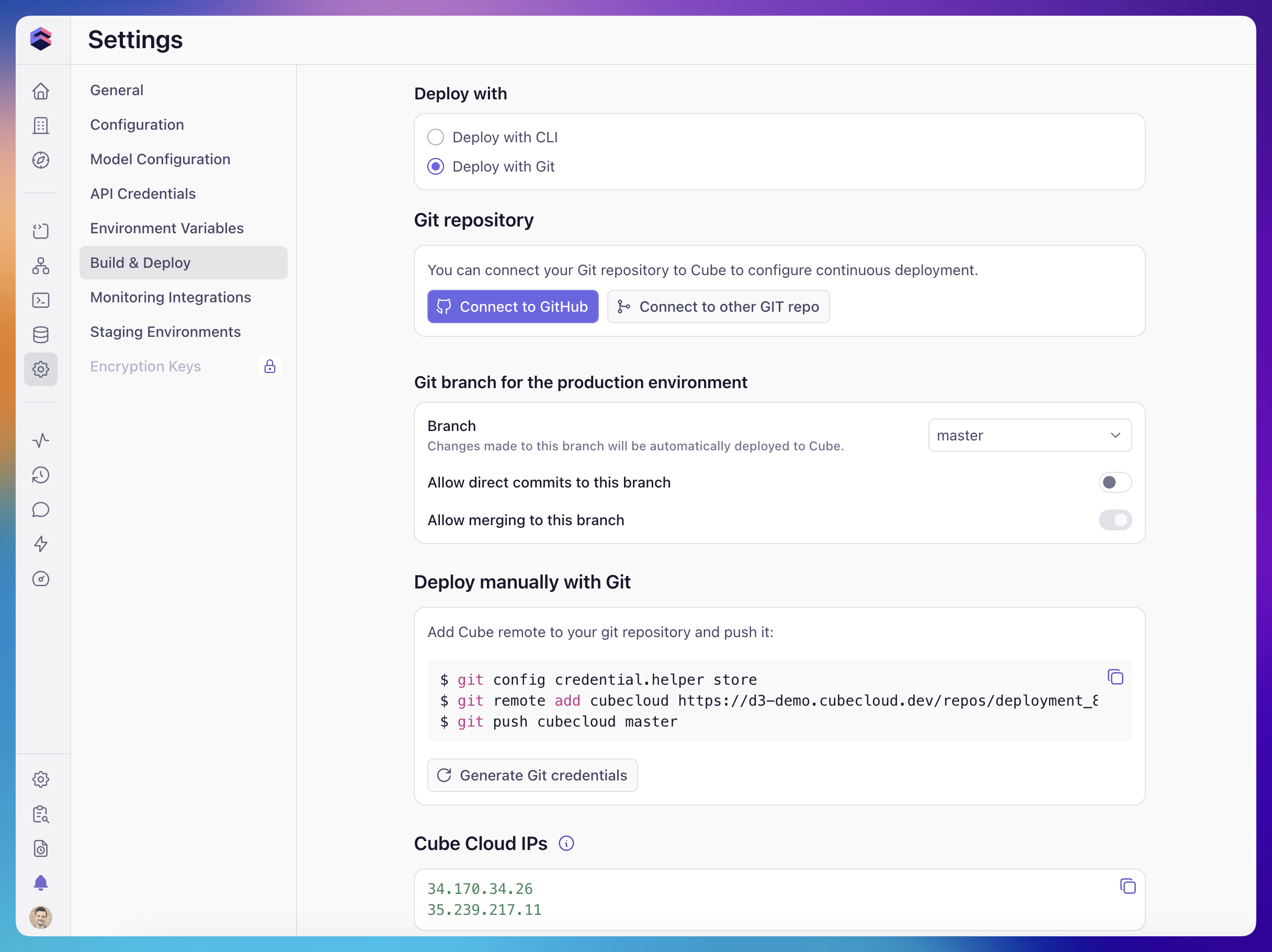
Deploy with GitHub
You can connect a GitHub repository to your deployment by clicking the Connect to GitHub button on the Build & Deploy tab of the Settings screen and selecting your repository. This works with both the Deploy with Git and Deploy with CLI deploy modes. What happens after connecting depends on the deploy mode:- In Deploy with Git mode, pushes to the configured production branch trigger a build when the Cube project changes.
- In Deploy with CLI mode, production deployment remains manual. See Connecting GitHub on a CLI deployment.
GitHub App permissions
Install the Cube Cloud GitHub App on the account that owns the repository: your personal account for a personal repository, or the organization for an organization repository. Authorizing your GitHub login alone does not give the app access to an organization’s repositories. If the account is missing in Connect to GitHub, choose Add new organization in the account selector to open GitHub’s app installation dialog. Grant the installation access to the repository you want to connect, either through Only select repositories or All repositories. GitHub displays the full requested permission set during installation. The integration uses access to repository contents to read and push commits, pull requests to propose model changes, repository administration to create repositories, and webhooks to receive push, pull-request, and branch-delete events. Complete installation and any required organization-owner approval before connecting or creating a repository. Your own GitHub access and the app’s access are separate: for a missing organization repository, check both with an owner. If your organization restricts repository creation by apps, have an owner review that policy or create the repository in GitHub and grant the app access to it.Creating a new repository
In Connect to GitHub, choose Create new repository to create a repository under the selected GitHub account. This flow pushes the deployment’s existing Git content to GitHub; creating a repository does not itself generate a data model.Project directory
When connecting an existing repository, the selected branch must contain committed files inmodel/ or legacy schema/ under the Cube project directory.
For example, for analytics/model/cubes/orders.yml, set the project directory to
analytics, not analytics/model. Leave it empty for a project at the repository
root.
If you see “Data Model folder not found at this location.” or “Data Model
folder not found at root location.”, check the selected branch and project
directory. An empty repository cannot pass this validation. Commit and push your
model first, or create a project from scratch in Cube and connect a new repository
after generating the model.
Keeping your repository in sync
GitHub push webhooks synchronize branches already added to Cube. Git synchronization and environment activation are separate: see deployment environments for when staging and development environments are available and how suspension works. When connecting an existing repository, Cube clones it before completing the connection. A successful connection does not mean the initial production build has finished. Users with permission to edit the model can select an existing GitHub branch in the branch switcher to add it to Cube; no new push is required. Select the intended branch before comparing the IDE or Cubes & Views in Explore with GitHub. If you are already in development mode, use pull from remote to update your personal working copy with changes pushed to GitHub. If a pushed change does not appear:- Check the repository, branch, and project directory in Settings → Build & Deploy and confirm the deploy mode.
- In GitHub’s repository Settings → Webhooks, check that the Cube webhook is active and inspect the push delivery and response. Fix any access or delivery error before redelivering a failed event.
- Check the build status, then open the intended environment. If the change is still missing, contact support with the deployment, branch, commit SHA, and webhook delivery result.
429 responses. See
webhook response codes.
Deploy with CLI
When a deployment is configured to deploy with CLI, production builds are only triggered when you (or your CI/CD pipeline) push the project to Cube Cloud by running: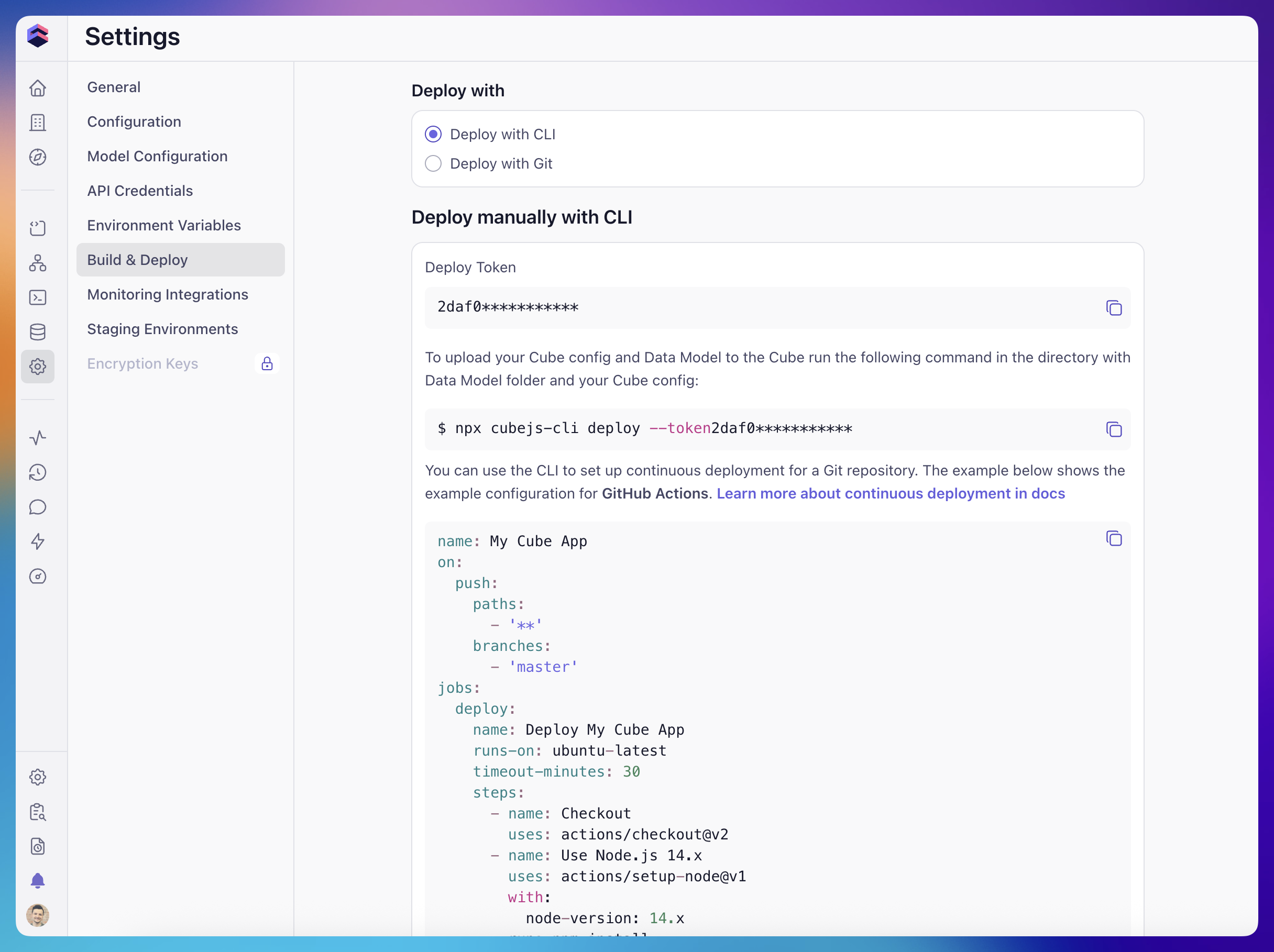
Cube Cloud still maintains an internal Git repository for the deployment so
that features such as development mode and branching can work.
CLI production builds use the uploaded project, independently of the Git
content used for development and branching. GitHub commits and UI merges are
not automatically included in that upload.
Connecting GitHub on a CLI deployment
You can still connect a GitHub repository to a CLI deployment. When you do:- Pushes to non-production branches already added to Cube are picked up by the GitHub webhook and automatically synced.
- Pushes to the production branch are intentionally not
auto-deployed in CLI mode. Production deployment only changes when
somebody runs
cubejs-cli deployagainst the deployment.
Development mode with CLI deployments
Development mode is fully available on CLI deployments: developers can enter dev mode, switch branches, save changes, commit them, and even merge branches into the production branch from the Cube Cloud UI. However, in CLI mode, none of these actions trigger a production build or redeploy. Specifically:- Saving or committing changes in dev mode only updates the per-developer development environment and the corresponding branch in the internal repository. Production is not affected.
- Merging a branch into the production branch from the Cube Cloud UI updates the production branch in the internal repository but does not rebuild or redeploy the production environment.
- The next
cubejs-cli deploybuilds from your local project. Include any changes made through the UI in that local project if you want them in production.
cubejs-cli deploy against the deployment.
If you want changes made in the Cube Cloud UI to flow to production
automatically, switch the deployment to Deploy with Git.